
Basic Info
The game screen explained, Zen and Ruud, every keyboard shortcut in a table, the Move Command and the Hunting Log.
The game screen, number by number
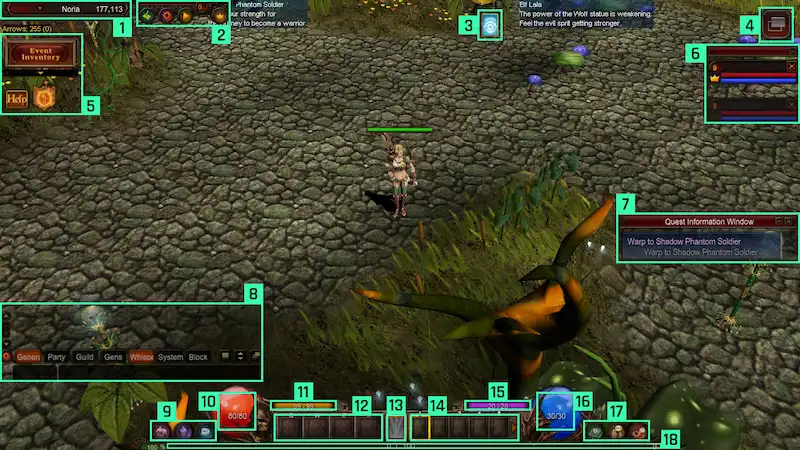
- Current channel and channel selector, map and coordinates
- Hunting log, Mu Helper and Helper Plus
- Buffs and Switch Scroll
- Switches between classic mode and simple mode
- Minigames, event inventory, help and event notifications
- Party
- Quest information window
- Chat
- In-game shop, character sheet and inventories (Muun, normal and Gremory Case)
- Character HP
- Character SD
- Item slots (potions)
- Skill configurator and the skill in use
- Skill slots
- Character AG
- Character mana
- Quests, community (friends, guild, gens, party) and system (play guide, move, options, store search)
- Experience bars
The two currencies
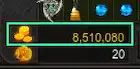
Zen is the basic currency. It comes from hunting and from selling items to NPCs, and it can be traded between players.
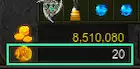
Ruud buys items and skills from NPC Priest James. It is a bound currency: it cannot be traded.
- Event maps: Chaos Castle, Blood Castle, Devil Square, Illusion Temple, Doppelganger and Empire Guardians (Varka).
- Events: Dimensional Roulette, minigames, ranking and others.
- It also comes inside the mastery box that events pay out.
Chat
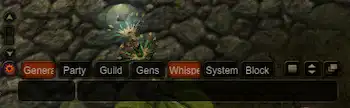
The tabs split General, Party, Guild, Gens, Whisper and System. Block opens the blocked-user list, and Others sets transparency and size.
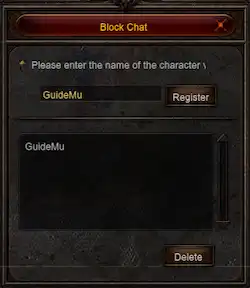
Put a character name on the block list and they vanish from your chat.
Keyboard shortcuts
Character windows
| Key | What it does |
|---|---|
C | Character information |
I | Inventory |
V | Inventory |
Y | Muun inventory |
K | Gremory Case |
A | Master Skill tree |
CTRL + A | Skill Enhancement tree |
U | Skill Imprint |
B | Gens information |
T | Quests |
X | In-game shop |
L | Equipment repair (only while the inventory is open) |
S | Open the Personal Store (only while the inventory is open) |
H | Extended warehouse (only while the warehouse is open) |
Community and world
| Key | What it does |
|---|---|
D | Command window |
F | Friends |
G | Guild |
N | Party and Guild Matching |
P | Personal Store list |
M | Move Command window |
END | Hunting log |
Z | Mu Helper |
HOME | Mu Helper ON/OFF |
O | Options |
ESC | System menu |
Chat
| Key | What it does |
|---|---|
ENTER | Chat ON/OFF |
F2 | Block chat window |
F3 | Whisper display ON/OFF |
F4 | Resize the chat window (only while the chat is active) |
F5 | Chat transparency and General window |
F9 | Gens window |
F10 | General window |
F11 | Party window |
F12 | Guild window |
Combat
| Key | What it does |
|---|---|
Q | Item slot 1 |
W | Item slot 2 |
E | Item slot 3 |
R | Item slot 4 |
1 to 0 | Skill slots |
SPACE | Pick an item off the ground |
ALT | Show or hide the items dropped on the field |
Minimap and screen
| Key | What it does |
|---|---|
TAB | Minimap ON/OFF |
+ | Enlarge the minimap |
- | Shrink the minimap |
[ | Lower minimap transparency |
] | Higher minimap transparency |
CTRL + F | Switch mode (classic / simple) |
F1 | Help |
PRINTSCREEN | Screen capture |
Party
| Key | What it does |
|---|---|
CTRL + S + left click | Move every party member |
CTRL + middle button | Run every party member's helper |
Spending stat points
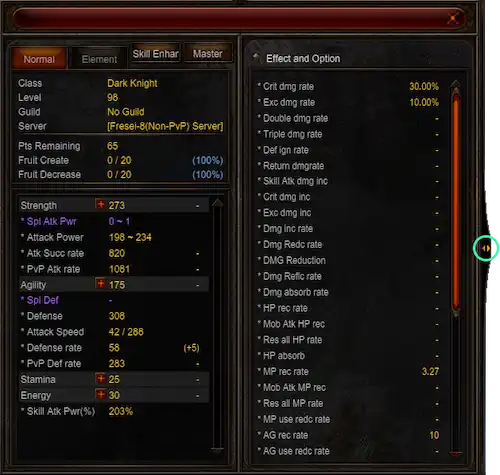
The C key opens the sheet with the points you have to spend on strength, agility, stamina, energy and command (Dark Lord only).
- With at least 1 spare point, the + button lights up next to the stat.
- The mouse wheel button spends them fast.
- The button on the right folds the effect and option window open and shut.
Move Command
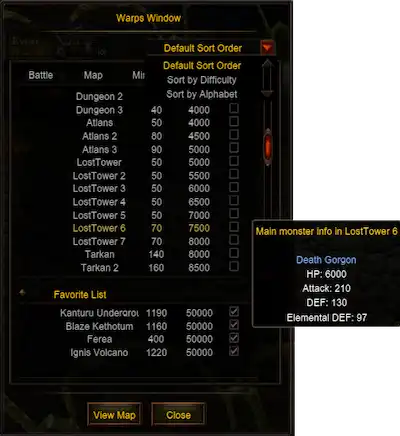
You can walk anywhere in MU, but the M key opens the map list and takes you straight there. It only works if you have the level and the Zen the map asks for.
- Map in white: you can go.
- Map in red: not yet.
- Sort by difficulty — the harder maps sit at the bottom.
- Sort by name — alphabetical order.
- Hover a map and its main monsters show up.
The Maps tab on this wiki has the same list, with the level and cost of every map.
Command window
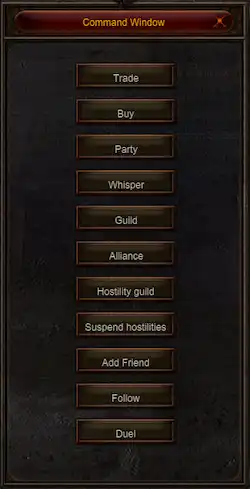
The D key opens the window with the community actions: trade, party invite, guild invite and the rest.
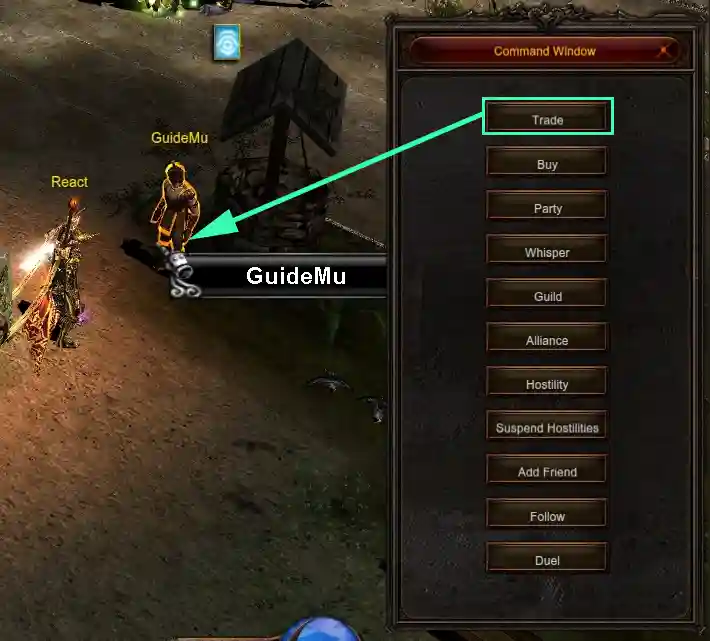
Click the button you want, move the mouse to the target and left-click.
Hunting Log

The Mu Helper hunting record. Opens with the END key or through the map in the top-left corner.
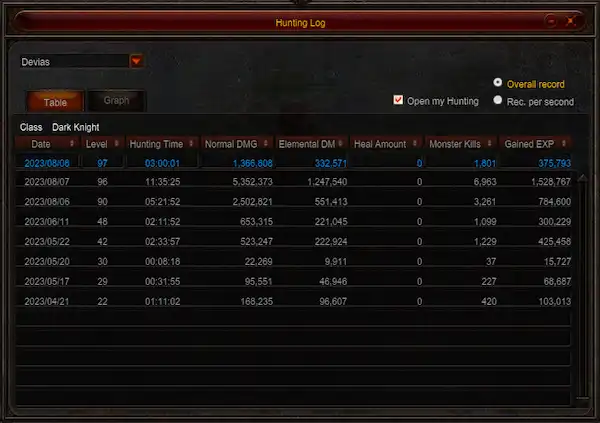
As a table the log shows date, level, hunting time, damage, monsters killed and experience, map by map. The blue row is today.
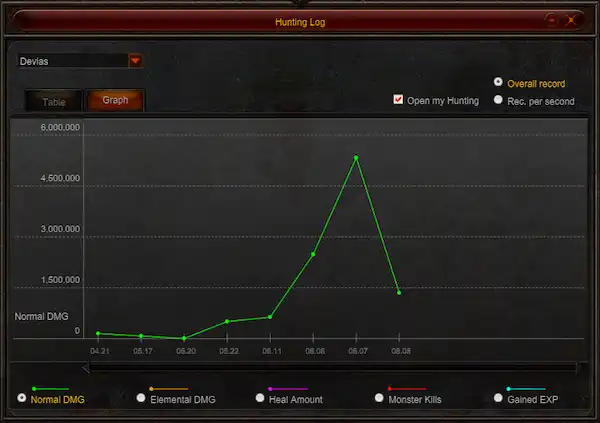
On the graph the X axis is the date and the Y axis is whatever you pick: general damage, elemental damage, healing, monsters killed or experience.
The history keeps 60 days.
Tick open my hunting log window and other players can look at yours.
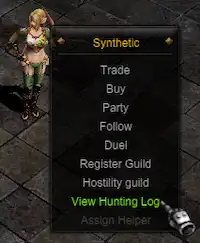
Hold ALT, right-click the character and pick view hunting log — it only works on players who opened theirs.